What is Google Search Console?
If your website has been online for several months but you don’t know where your traffic comes from — or why some pages never show up in Google — the first tool to open is definitely Google Search Console.
GSC is Google’s own free website owners tool. This is not third-party tracking or an estimate. The data it provides is direct from Google — and that means it’s a direct line to the most accurate information about how your site performs in search.
What it really tells you is this:
That your pages are ranking for which keywords Number of times your site showed up for a keyword (impressions) Number of people who visited your site (clicks). Your average ranking per keyword The pages Google crawled, indexed or blocked. Any technical issues hindering rankings on your site
More than 2 million sites have verified in Search Console around the world according to Google. Yet, a majority of small website owners in India do not even use it or have opened once and never come back!!!!!! Which is a shame because the data inside is actually useful — and fully free.
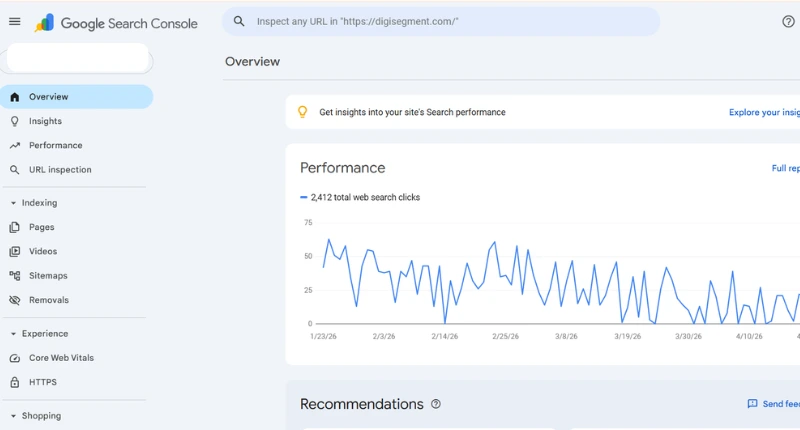
Setting Up Google Search Console
It only takes about 10 minutes to set up GSC. Here’s the step-by-step process.
Step 1: Head over to Google Search Console
Launch your browser and head to search. google. com/search-console. Log in with the Google account that you want to connect your website to.
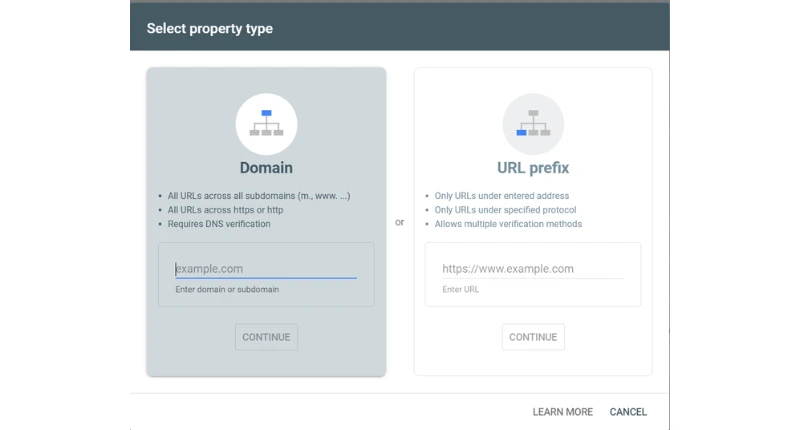
Step 2: Add a Property
Click “Add Property.” You’ll see two options:
Domain — secured over the entire domain, including all subdomains and protocols (http, https, www, non-www). This is the recommended option.
URL Prefix — applies to a single variation of your URL (e.g. https://www.yoursite.com/).
Domain: This is where you can choose Domain, and enter the root domain of your site (for example digisegment. com).
Step 3: Verify Ownership
Google must verify that you are indeed the owner of the website. Domain verification requires a DNS TXT record through your domain registrar (GoDaddy, Namecheap, Cloudflare, etc.) Google provides the exact record for you to copy paste.
If that sound too technical the HTML tag method under URL Prefix:
Paste the meta tag that Google gives you So simply copy the code it generated and paste it in your WP site under SEO settings (Rank Math or Yoast) Click “Verify” in GSC
Done. This verification process typically only takes a few seconds.
Step 4: Wait for Data
Usually, new properties begin to appear in GSC after 3–7 days. Your first report should show data within 48 hours if your site receives traffic.
Understanding the Performance Report
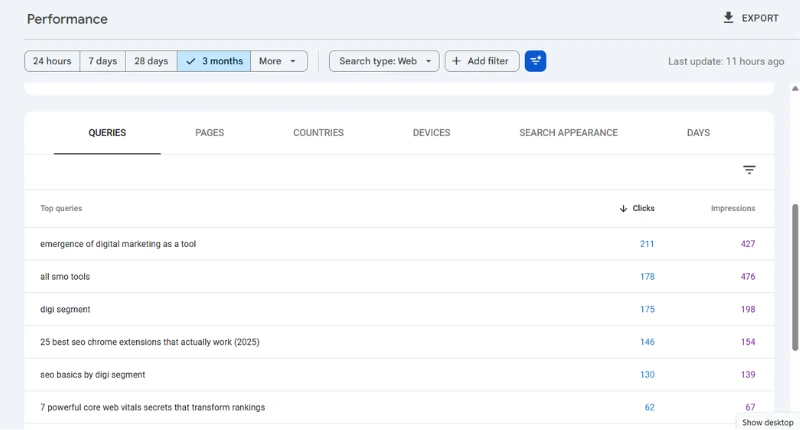
Optimizing for search and understanding performance is the most sought-after section in any Google Search Console tutorial — and with good reason. Scene Set — This is where you see the real representation of your organic search traffic.
Open it in the left sidebar from Search results
At the top you can see four metrics:
Metric | What It Means |
Total Clicks | The number of times someone clicked on your site from Google |
Total Impressions | The number of times your site appeared in search results |
Average CTR | Click-through rate (CTR) = Clicks / Impressions — what % of people clicked |
Average Position | Average position is where your pages appear on average across all queries |
From there, you can filter by:
- Queries — the keywords people searched for
- Pages: to control which pages in your site that getting impressions and clicks
- Locations — where your traffic originates from
- Terms — mobile vs. desktop vs. tablet Type of search appearance — normal results, featured snippets and so on.
How to Actually Use This Data
We tend to just look at the total clicks number, but…
Go to Queries tab and sort by Impressions This lets you actually see the keywords your pages are showing up for, even if people aren’t clicking on them.
If a keyword has many impressions and low CTR, it is an opportunity. It means Google is already ranking your page for that term — you simply need to write a better title or meta description to drive more clicks.
Fixing Coverage Errors
The Coverage report (now Indexing in the new GSC interface) tells you which pages are indexed by Google, try to index and can’t reach.
Most beginners find hidden issues on their site here.
The Four Status Types
Valid — Page is indexed. No action needed.
Valid with Warning — Page is in index, but something is wrong (for example blocked by robots. txt but still indexed). Worth investigating.
Error — Technical reason prevents indexing the page This needs fixing.
Excluded — The page was found but purposefully not indexed ( for instance, pages that you flagged with a noindex catch or perhaps copies).
Most Common Mistakes and Corrective Actions
“URL not found (404)” — The URL you submitted with your sitemap doesn’t exist. Either fix the page or remove it from your sitemap.
Directing error,Redirect loop or broken redirect Resolve redirect chain in your hosting settings or within an SEO plugin
“Crawled – not currently indexed” — the page has been visited by Google, but will be left out of the index. In most cases, this indicates low quality thresholds at the Google content signal i.e. thin / duplicate / poor page quality Update the content and re-index it
Over the years you have long fixed technical issues on WordPress.
Using the URL Inspection Tool
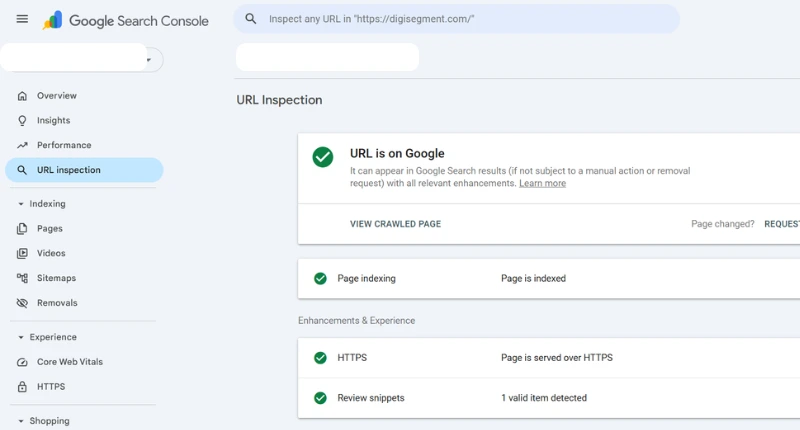
The URL Inspection tool (one of the most underused features in GSC, but also one of the most useful).
It is located in the top of the left sidebar. Enter any URL on your website and hit Enter.
GSC will show you:
Whether the URL is indexed When Google last crawled it How the page looked to Google’s crawler (rendered version) If it is eligible for display in search results Problems with that page specifically
When to Use It
New post published — Copy the url and click Request Indexing This requests that Google crawl and index the page more quickly than it normally would. It does not ensure same-day indexing, but it speeds things up.
Ignoring a code fix — If you fixed a 404 error or noindex tag, check that the fix is live with URL Inspection, then request indexing.
Ever wonder how Google is truly looking at your page when it isn’t ranking? What you see, on the other hand is not what Google sees — this especially happens with JavaScript-heavy themes.
Google Search Console Core Web Vitals
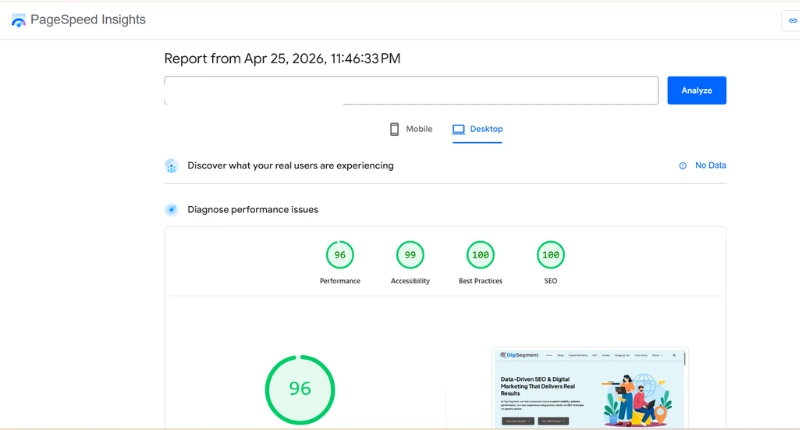
Core Web Vitals is the speed and user experience metrics, originally created by Google. They have been a known Google ranking factor since 2021. They have a specific report on GSC.
Under Experience > Core Web Vitals in the sidebar, you will find it.
The report shows pages classified into 3 divisions:
Good – breaking the performance thresholds set by Google Needs improvement — borderline RED — FAILING THE THRESHOLDS AND MAY HURT RANKINGS
Web Vitals Metrics: The Three Core Categories
LCP – Largest Contentful Paint — How quickly the largest content element on your page loads. Should be under 2.5 seconds.
Interaction to Next Paint (INP) — How long the page takes to respond after a user clicks, taps or types. Needs to be under 200ms (This replaced FID as at Mar 2024)
CLS (Cumulative Layout Shift) — The CLS measures how much the page shifts about during loading. Should be under 0.1.
Google says its own research suggests that Core Web Vitals-compliant pages lose fewer users — understandably so. No one is going to wait 6 seconds for your blog post to load.
In most cases, if your Core Web Vitals are failing, this is because of image size, too many plugins or slow hosting server. The GSC report even provide specific URLs so you know precisely which pages to fix first.
GSC vs Google Analytics — Different?
We all know how common this question is in any of the Google Search Console tutorials. And the comparison is a decent one — both have to do with website traffic, so it’s hard to mix them up.
This may be the most straightforward way to think of it:
Before the click, this is what Google Search Console tells you. What did your site look like in Google? What keywords triggered your listing? Did they click or did they scroll away?
And you know what happens after the click — as Google Analytics shows. After visitors landed on your page what did they do? How long did they stay? What pages did they visit next? Did they convert?
Feature | Google Search Console | Google Analytics |
Source of data | Google Search only | All traffic sources |
Keyword data | Yes — full search queries | Limited (GA4 shows some) |
Indexing errors | Yes | No |
User behavior on site | No | Yes |
Bounce rate, sessions | No | Yes |
Core Web Vitals | Yes | Partially (via reports) |
Cost | Free | Free |
You need both. These are not substitutes, but they are complementary. When it comes to the overall search visibility data, most SEO professionals go for GSC first and then switch to Analytics for engagement and conversion data.
My Real Experience With GSC
Digisegment is something I began working on six months ago. The first week after creating the account, before putting out any real content, I connected Google Search Console.
Fast forward about a month and I went into Performance report so I saw what do you think. A blog post on digital marketing had more than 400 impressions per month for a keyword using the term “digital marketing PDF notes.” But the CTR was 0.8%. That’s low. That essentially meant 396 of every individual amongst the list was productive and no one had clicked
The fix was simple. I changed the meta description so it talked directly about what was in the post (a summary to download, key concepts covered and who this was for). The CTR shifted to 3.1% in three weeks.
Just this one change, discovered in GSC’s Performance report and made without putting a single new word to paper, resulted in a significant inbound click increase.
This is precisely why I suggest GSC as the first tool every website owner should implement. It highlights what has already proven successful — and more importantly, what’s almost at the finish line, but just needs a small push.
Final Thoughts
Google Search Console is not the prettiest tool in an SEO workflow. But it’s the most honest one. What this means is no estimates, no guesstimates — only raw data straight from Google on how well your site ranks in search.
If you still need to setup yours do that today. You will see data in around a week and it cost me 10 minutes. And if you’ve had it for months, but hardly opened that, jump to Performance report now and check Queries tab. You’ll almost definitely discover a keyword that is near being in the top and just needs slightly of tweaking.
That’s where the wins are. GSC is the tool that tells you where to find them.
FAQ
Yes, completely. GSC is one of Googles free tools and does not have (or need) a paid version. All it takes to get started is a Google account, and a verified site.
In GSC, data through the Performance report is delayed 2–3 days? This isn't real-time like Google Analytics. The date range will default to the last 3 months, but you can see as many as 16 months worth of data.
No. Google Search Console only displays this data for properties you own and are verified in google search console. This tool only allows you to access GSC data from your own website. Tools like Ahrefs or Semrush are better suited and much more common for competitor research.
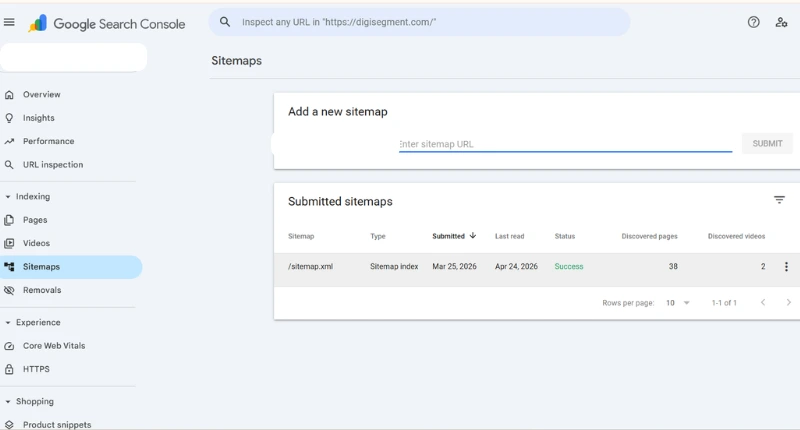
Sitemaps (in the menu side Indexing) → Put in your Sitemap URL which is in most cases, but not always yoursite. com/sitemap. xml) → Click Submit. If you are using a WordPress plugin like Rank Math or Yoast SEO, then your sitemap is created by default. All you need to do is submit your URL.
CTR — Click through rate As for GSC, this is the share of all users who clicked your site's listing after seeing it in the search results. So for example on your Page showed 100 times you had 4 clicks, therefore your CTR is 4%. If you have a low CTR, this usually means that your title tag, or meta description is not catchy enough for people to click on.

Founder of Digi Segment and HV Digital Marketing
SEO Strategist & Digital Marketing Expert
Hardik Vaghani is a digital marketing professional and SEO strategist based in Surat, Gujarat, India. He is the founder of Digi Segment, a content and insights platform covering SEO, digital marketing, AI tools, and online growth strategies, and the founder of HV Digital Marketing, a results-focused digital marketing agency helping local and service-based businesses rank on Google and generate consistent leads.
With hands-on experience in Search Engine Optimisation, Technical SEO, Google Ads, Meta Ads, and Content Strategy, Hardik has helped businesses across industries including e-commerce, real estate, healthcare, home improvement, and solar companies improve their organic visibility, local search rankings, and lead generation through ethical, white-hat strategies.
He specialises in Core Web Vitals optimisation, on-page SEO, keyword research aligned with search intent, and building scalable content frameworks that rank. At Digi Segment, Hardik shares practical, experience-backed insights, case studies, and step-by-step guides to help marketers, entrepreneurs, and small businesses grow online.
When he is not optimising websites, Hardik is building digital tools, writing SEO-focused content, and working with his agency clients to turn Google visibility into measurable business growth.
Expertise: SEO | Technical SEO | Google Ads | Meta Ads | Content Strategy | Core Web Vitals | WordPress | Digital Marketing | Lead Generation | Local SEO