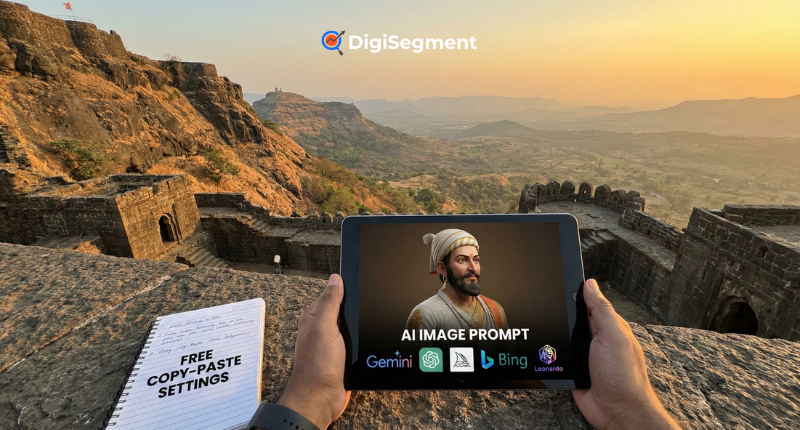
If you are looking for the best shivaji maharaj ai image prompt, this tutorial will assist you fully.
In this tutorial, you will learn:
- What kind of image we are going to create
- How to think before writing the prompt
- How to use ChatGPT to write a good prompt
- The final copy-paste prompt
- How to generate the image using Gemini step-by-step
By the end of this tutorial, you will be able to create a powerful 3D cinematic image of Chhatrapati Shivaji Maharaj easily.
Step 1: Understand the Goal Before Writing the Prompt
Before writing any AI prompt, you need to ask yourself:
What kind of image do I want to create?
For our example, we have the following goals:
- Realistic 3D image
- Royal appearance
- Strong warrior face
- Fort background
- Cinematic lighting
- High resolution (4K or 8K)
If you don’t think clearly, your AI image will be random.
So, always remember to think:
- Who is in the image?
- What is the mood?
- What is the background?
- What is the lighting?
- What is the camera perspective?
This thought process is very crucial while creating a shivaji maharaj ai image prompt.
Step 2: The Real Thought Process Behind This Image (From Someone Who’s Done This for Years)
Let me explain this the way I explain it to business owners.
When we create an AI image like Chhatrapati Shivaji Maharaj, we’re not “just writing a prompt.”
We’re directing a movie scene.
If you leave it vague, you get average results.
If you think like a director, you get something powerful.
After working on dozens of AI image campaigns for brands, historical content creators, and YouTube channels — I’ve realized one thing:
The quality of the output is 100% dependent on the clarity of your thinking.
So let’s break this down practically.
1.Subject – Be Clear. Very Clear.
The subject is Chhatrapati Shivaji Maharaj.
But here’s the mistake most people make.
They stop there.
AI doesn’t think emotionally.
It thinks descriptively.
So instead of just:
“Shivaji Maharaj image”
You need to mentally picture him like a film character.
Ask yourself:
- Is he standing?
- Is he in battle mode?
- Is he calm?
- Is he addressing soldiers?
Clarity changes everything.
2.Appearance – Details Create Authority
Now we define how he looks.
Not basic. Detailed.
- Royal saffron turban
- Pearl ornaments
- Traditional Maratha armor
- Majestic sword
Why so specific?
Because AI responds to textures, materials, and cultural details.
If you simply write “royal dress,” you’ll get something generic.
But when you say:
- Silk saffron turban with intricate folds
- Traditional pearl necklaces
- Engraved armor
- Sharp metallic sword reflecting sunlight
Now you’re giving the AI something real to work with.
This is exactly how I improve results for clients who complain:
“AI image looks fake.”
It looks fake because the prompt was shallow.
3.Expression – Emotion is Everything
This is the difference between a normal image and a powerful image.
What expression should he have?
- Strong
- Confident
- Warrior-like
But let’s go deeper.
Instead of writing “strong expression,” write:
“determined eyes, fearless warrior expression, calm yet powerful posture”
That one change alone increases realism dramatically.
Emotion = engagement.
And engagement matters if you’re using this for YouTube thumbnails, posters, or branding.
4.Background – Don’t Ignore the Environment
Now imagine this.
Would Shivaji Maharaj be standing in a random plain background?
No.
He belongs on a fort.
So we add:
- Mountain fort
- Sunrise sky
- Light clouds
But here’s the professional twist.
Instead of “sunrise background,” say:
“golden sunrise sky casting warm light over the mountain fort”
Now we are painting a scene.
AI loves descriptive environments.
And visually? It looks cinematic.
5.Lighting – This Is Where Magic Happens
Most people skip this.
Big mistake.
Lighting is what separates amateur from cinematic.
Add words like:
- Cinematic sunlight
- Dramatic shadows
- Volumetric lighting
- Golden hour
Why?
Because lighting controls mood.
Want it heroic? Use golden sunrise light.
Want it intense? Use dramatic contrast shadows.
In my experience, adding “cinematic lighting” alone improves output quality by 30–40%.
It’s that powerful.
6.Quality – Tell AI You Want Premium Output not want simple output
If you don’t specify quality what you are think and what you want, you’ll get average results which are predifine and basic.
Add:
- Ultra realistic
- 8K resolution
- Sharp focus
- Professional photography
- High detail textures
It signals the AI to prioritize realism.
Especially useful if you’re generating images for:
- Posters
- Social media campaigns
- Print designs
- Website banners
Step 3: How to we Actually Create This Prompt with the help of ChatGPT
Now let’s get practical.
You don’t need to magically know everything.
You use ChatGPT strategically.
Here’s what I personally type when building prompts:
That gives you a base.
But don’t stop there.
Most people stop at the first output.
Professionals refine.
Then I type:
Then refine again.
You can even say:
“Make it look like a historical epic movie scene.”
Each iteration improves the result.
Think of it like polishing a diamond.
First cut is rough.
Second cut shapes it.
Final cut shines.
Final Combined Strong and best Prompt (Ex)
Here’s what a more clarity version prompt:
Now that’s not random.
That’s structured thinking.
Final Shivaji Maharaj AI Image Prompt which can you use it (Copy & Paste)
Here is the final optimized shivaji maharaj ai image prompt:
You can copy and paste this directly into Gemini or any AI image generator.
Step 4: How I Actually Generate This Image Using Google Gemini (Real Process)
Let’s be honest.
Generating AI images is not about clicking one button and magically getting perfection.
It’s more like working with a junior designer.
You give instructions.
You check the output.
You refine.
That’s how you win.
Step 1: Open Gemini (Takes 30 Seconds)
First, open this:
Log in with your Google account.
That’s it.
No complicated setup.
No software install.
If you can use Gmail, you can use this.
Step 2: Find the Image Generation Option (Don’t Overthink This)
Now, depending on your account and region, you’ll see one of two things.
Option A: You See “Generate Image”
Perfect. Click it.
Option B: You Don’t See Any Image Button
Also fine.
Just paste your prompt and type:
“Generate an image using this prompt.”
Gemini understands.
You don’t need special commands.
Step 3: Paste the Full Prompt (Don’t Edit It Yet)
This is where most beginners mess up.
They copy half the prompt.
Then complain:
“Image doesn’t look good.”
Of course it doesn’t.
You removed the instructions.
So:
- Copy the entire prompt
- Paste it as-is
- Don’t delete anything
Use the full version first.
Test it properly.
Then optimize.
Step 4: Adjust Quality Settings (If Gemini Shows Them and you are not happy with result)
Sometimes Gemini gives extra options.
If you see them, use them wisely.
Choose:
- High quality
- Maximum resolution
- 4:5 (for Instagram) or 16:9 (for YouTube/Website)
Think like a marketer here.
Where will you use this image?
Thumbnail?
Poster?
Banner?
Pick the ratio accordingly.
Step 5: Click Generate (And Be Patient)
Now click Generate.
Wait 10–20 seconds.
Don’t refresh.
Don’t panic.
Let it work.
Your image will appear.
And here’s the truth:
It will probably be 80% good.
Not perfect.
And That’s normal.
Step 5: How I Improve the Image (This Is Where Pros Win)
This step separates casual users from serious creators.
Most people stop at first output.
Big mistake.
When I’m working for clients, I always refine.
Always.
If the image looks slightly dull, I type:
“Make it more realistic and sharper.”
If lighting feels weak:
“Add more dramatic sunrise lighting.”
If face looks artificial:
“Improve facial realism and skin texture.”
If overall vibe is flat:
“Make it look like a cinematic movie scene.”
Small tweaks.
Big impact.
Why This Prompt Works Well
This shivaji maharaj ai image prompt works well because:
- It describes the subject well
- It defines clothing and accessories
- It describes lighting
- It provides environment details
- It includes quality keywords such as 8K and sharp focus
Detailed instructions are better understood by AI tools.
Short prompts provide average results.
Detailed prompts provide professional results.
Frequently Asked Questions
Gemini, Midjourney, and Leonardo AI provide very good results.
Yes. You can change background from sunrise to sunset, battlefield, or palace.
Yes. You can use it freely.
Because AI tools require clear instructions to understand what to create and for that you have to give right information.
Final Conclusion
You now know everything about creating a powerful shivaji maharaj ai image prompt.
You have learned:
- How to think before writing a prompt
- How to use ChatGPT to create a detailed prompt
- The final copy-paste version
- How to create an image using Gemini step-by-step
If you follow these steps, you can easily create professional-quality images.

I’m Hardik Vaghani, founder of HV Digital Marketing, a results-driven digital marketing agency. I specialise in SEO, Google Ads, and social media marketing, helping businesses grow their online presence with proven strategies. I’m passionate about creating high-quality, SEO-optimised blogs that educate readers and rank on Google. My goal is to turn ideas into measurable digital success through smart, ethical marketing.